Branding & Portal
The Branding & Portal settings let you customize how SAR Portal appears to your data subjects and team.
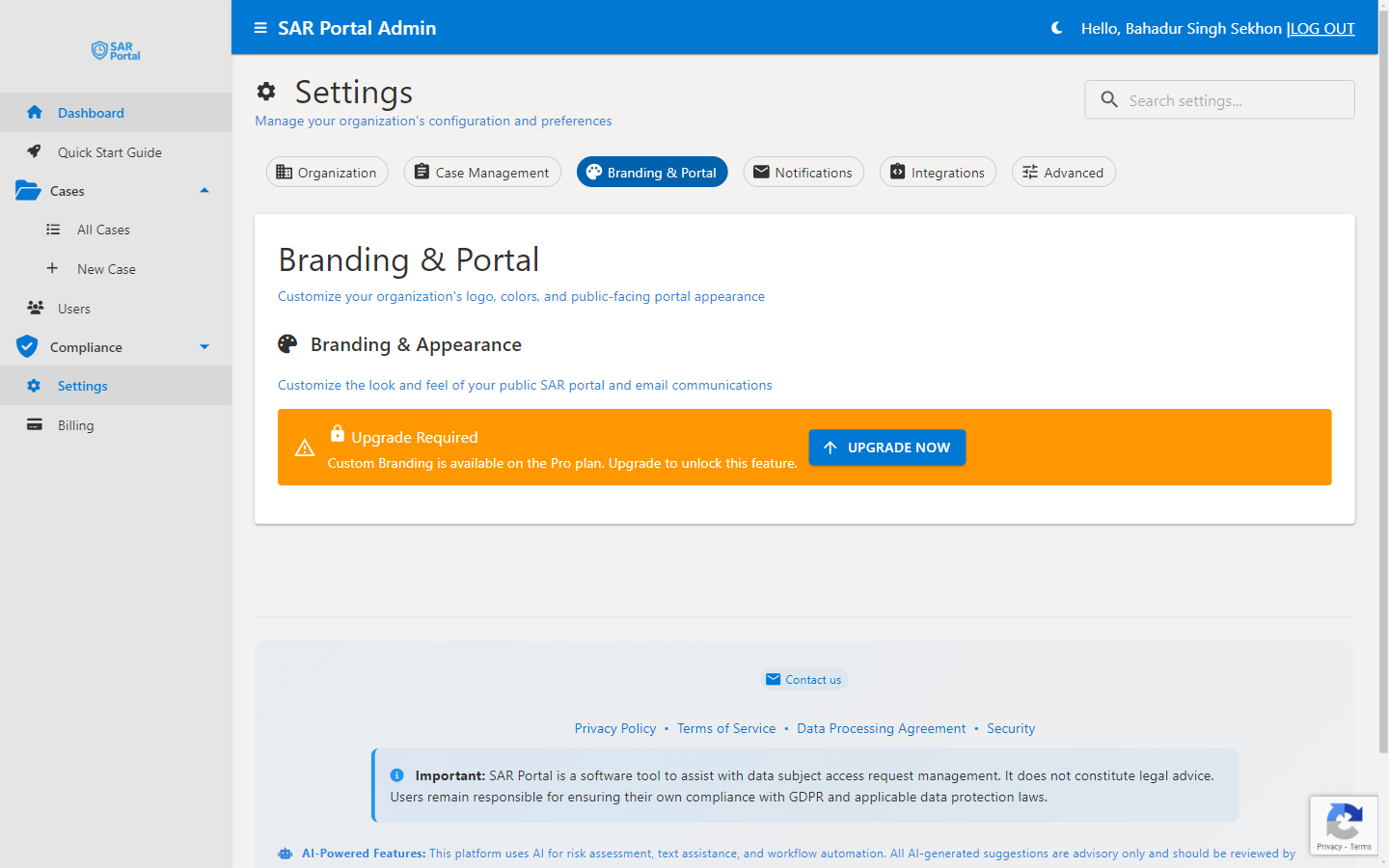
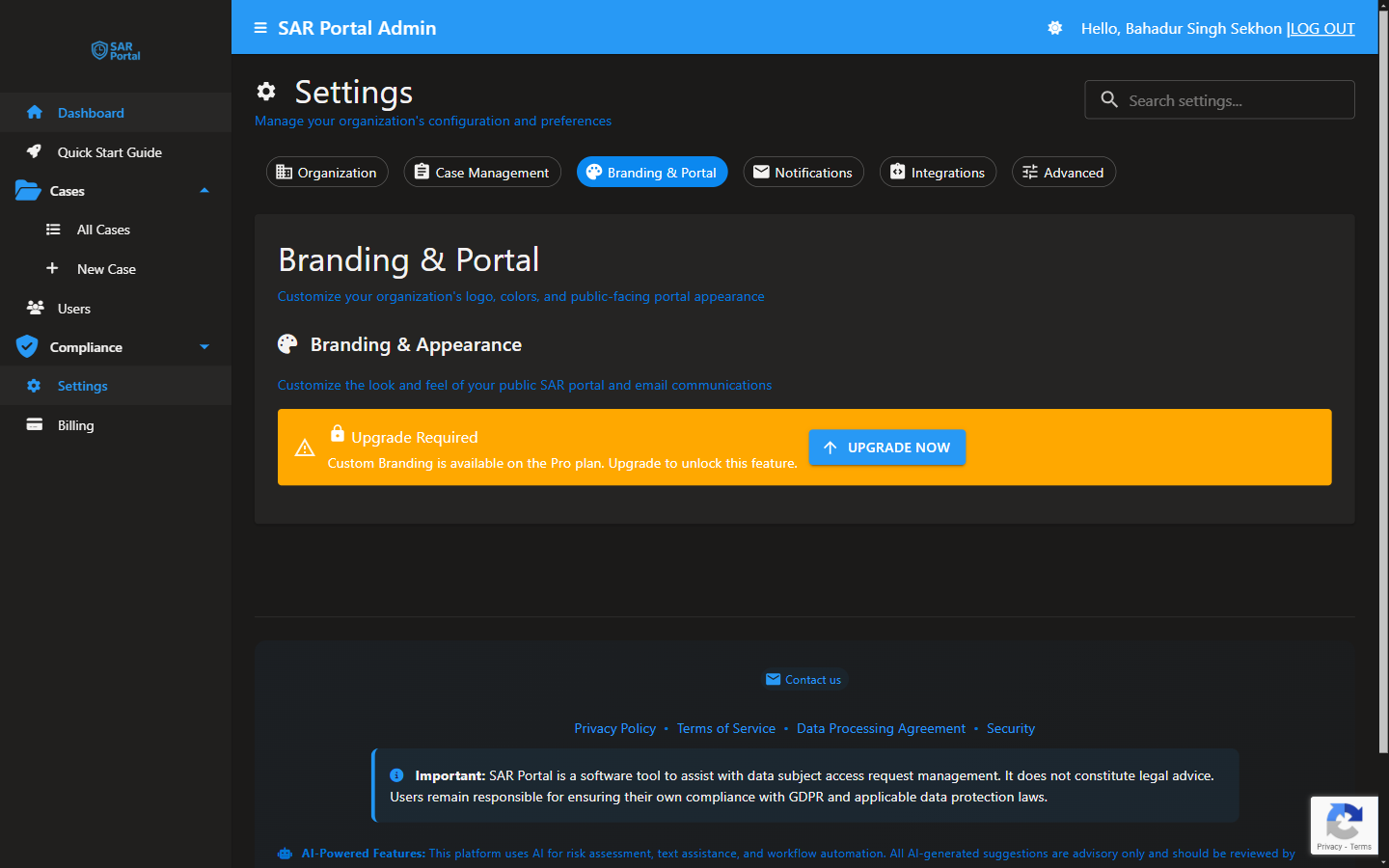
Accessing Branding Settings
- Go to Settings in the sidebar
- Click the Branding & Portal tab
Logo Settings
Upload Your Logo
- Click the upload area or drag your logo file
- Supported formats: PNG, JPG, SVG
- Recommended size: 200x50 pixels (or proportional)
- Transparent backgrounds work best
Logo Display
Your logo appears in:
- Public portal header
- Email communications
- PDF exports (optional)
Logo Tips
- Use high resolution for clarity
- Ensure readable on both light and dark backgrounds
- Keep file size reasonable (under 500KB)
Color Customization
Primary Brand Color
Your main brand color used for:
- Buttons and links
- Highlights and accents
- Progress indicators
How to Set:
- Enter a hex color code (e.g., #667eea)
- Or use the color picker
- Preview the result
- Save changes
Color Recommendations
- Choose a color with good contrast
- Avoid very light colors (poor visibility)
- Test on both light and dark themes
- Match your website branding
Portal Configuration
Portal URL
Your unique portal URL is shown here.
- Format:
https://app.sarportal.com/public/submit/{id} - Share this with data subjects
- Add to your privacy policy
Portal Enabled
Toggle to enable/disable the public portal.
- Disabled: Direct link shows maintenance message
- Useful during setup or transitions
Privacy Notice URL
Link to your privacy policy.
- Required for portal compliance
- Shown to subjects before submission
- Must be publicly accessible
Custom Welcome Message
Optional text displayed on the portal.
- Introduce your organization
- Set expectations
- Provide helpful context
Example:
“Welcome to our Data Rights Portal. We take your privacy seriously and will respond to your request within 30 days.”
Email Branding
Email Header
Your logo appears in email headers.
- Uses the same uploaded logo
- Scaled appropriately for email
Email Footer
Customize footer content:
- Company name and address
- Contact information
- Unsubscribe links (where applicable)
Email Colors
- Primary color applies to buttons
- Links match your brand color
- Consistent with portal appearance
Preview Your Changes
Portal Preview
- Click Preview Portal
- Opens in new browser tab
- See exactly what subjects see
- Test on mobile too
Email Preview
- Click Send Test Email
- Receive sample notification
- Verify branding appears correctly
Theme Support
Light Theme
Default appearance with:
- White/light gray backgrounds
- Dark text
- Your brand color for accents
Dark Theme
For users who prefer dark mode:
- Dark backgrounds
- Light text
- Your brand color adjusted for contrast
Subject Choice
Data subjects see the portal in light theme by default. Admin dashboard respects user preference.
Best Practices
Brand Consistency
- Match your website colors
- Use official logo version
- Maintain professional appearance
Testing
- Preview every change
- Test emails before going live
- Check mobile appearance
- Verify in different browsers
Accessibility
- Ensure sufficient color contrast
- Logo should be recognizable
- Text should be readable
Before Launch
- Complete all branding settings
- Test the full portal flow
- Verify emails look correct
- Share portal URL appropriately
Resetting to Defaults
To reset branding:
- Delete custom logo
- Clear custom color
- Remove welcome message
- Save changes
Default SAR Portal branding will apply.