Case Management
The Case Management settings let you configure how SAR Portal handles data subject requests for your organization.
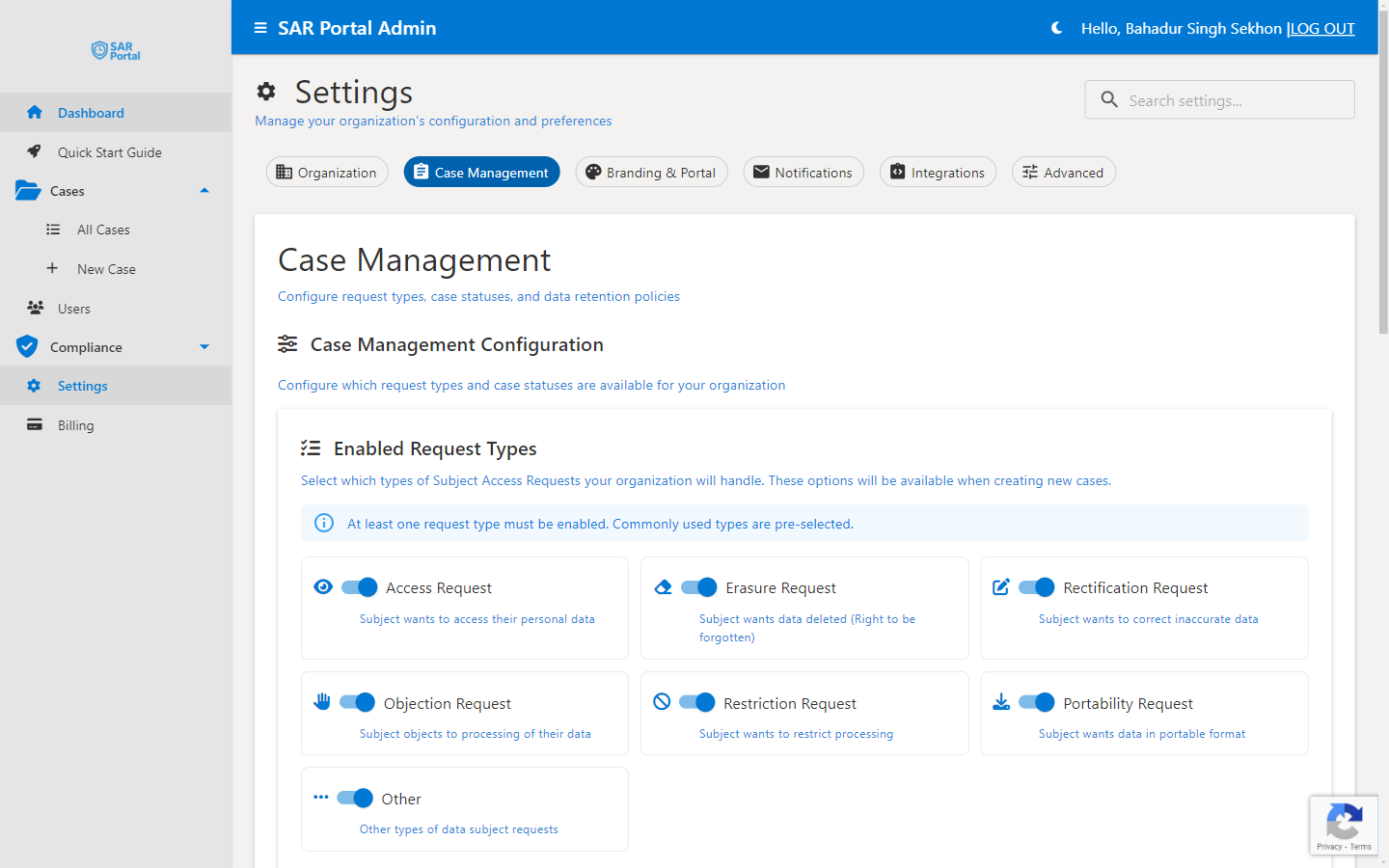
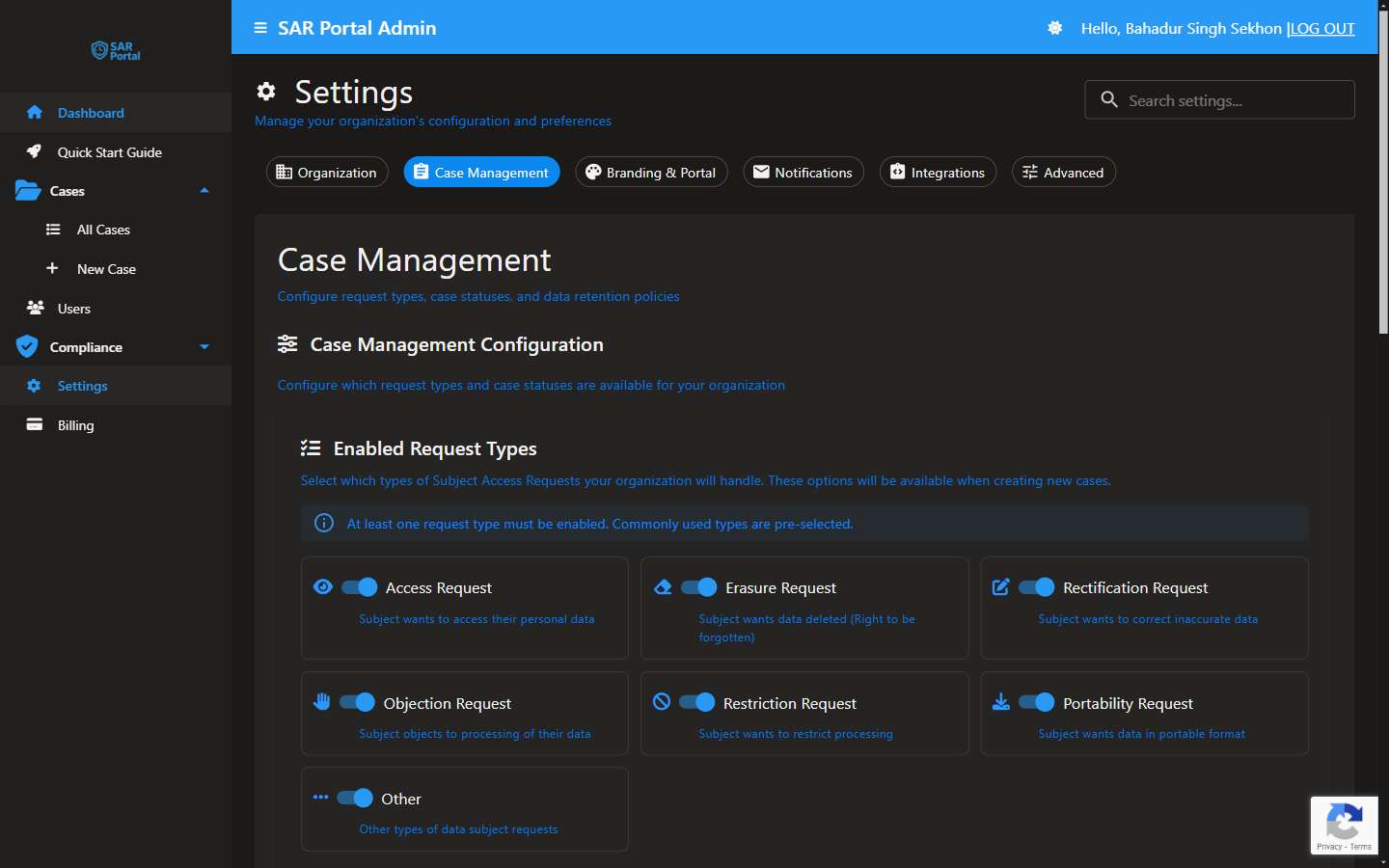
Sidebar → Settings → Case Management
Enabled Request Types
Configure which types of Subject Access Requests your organization will handle. These options appear when creating new cases.
Available Request Types
| Request Type | Description | GDPR Article |
|---|---|---|
| Access Request | Subject wants to access their personal data | Art. 15 |
| Erasure Request | Subject wants data deleted (Right to be forgotten) | Art. 17 |
| Rectification Request | Subject wants to correct inaccurate data | Art. 16 |
| Objection Request | Subject objects to processing of their data | Art. 21 |
| Restriction Request | Subject wants to restrict processing | Art. 18 |
| Portability Request | Subject wants data in portable format | Art. 20 |
| Other | Other types of data subject requests | Various |
Enabling/Disabling Request Types
- Go to Settings > Case Management
- Toggle request types on or off
- Changes apply immediately to new cases
At Least One Required
At least one request type must be enabled. If you try to disable all types, you'll see a warning message.
Default Case Settings
Response Deadline
Configure the default deadline for responding to requests:
- Standard GDPR deadline: 30 days
- Extended deadline: Up to 90 days for complex requests
- Deadline starts from case creation date
Auto-Assignment
Configure how new cases are assigned:
| Option | Behavior |
|---|---|
| Unassigned | Cases start without an assignee |
| Round Robin | Automatically distribute among team |
| Specific User | Assign all to a designated team member |
Case Statuses
SAR Portal uses predefined case statuses to track request progress:
| Status | Description |
|---|---|
| New | Just received, not yet reviewed |
| In Progress | Actively being processed |
| Pending Info | Waiting for additional information |
| Under Review | Being reviewed before completion |
| Completed | Request fulfilled |
| Closed | Case closed (fulfilled or rejected) |
Status Workflow
Case statuses follow a logical workflow. Some transitions may require specific conditions (e.g., all tasks complete before marking as Completed).
Data Retention
Case Retention Period
Configure how long completed cases are retained:
| Setting | Description |
|---|---|
| Retention Period | How long after case closure to keep data |
| Auto-Delete | Automatically delete expired cases |
| Archive Option | Archive instead of delete |
Recommended Retention
For GDPR compliance, consider:
- Keep records for the limitation period (typically 6 years)
- Document your retention rationale
- Balance compliance needs with data minimization
Request Type Configuration
Customizing Request Types
For each enabled request type, you can configure:
- Default deadline - Override the standard deadline
- Required fields - What information to collect
- Workflow steps - Default tasks to create
Public Portal Options
Control which request types appear on your public portal:
- Enable the request type in Case Management
- The type will appear in the public submission form
- Subjects can select when submitting their request
Best Practices
Start Simple
- Begin with the most common request types (Access, Erasure)
- Add more as needed
- Don’t enable types you won’t handle
Consistent Deadlines
- Use the same deadline for similar request types
- Document any extended deadline policies
- Train staff on deadline requirements
Review Regularly
- Check settings when regulations change
- Update based on your experience
- Ensure settings match your privacy policy
Related Settings
| Section | What It Does |
|---|---|
| Organization | Company details used in responses |
| Notifications | How subjects are notified of progress |
| Advanced | AI redaction and security settings |