Email Templates
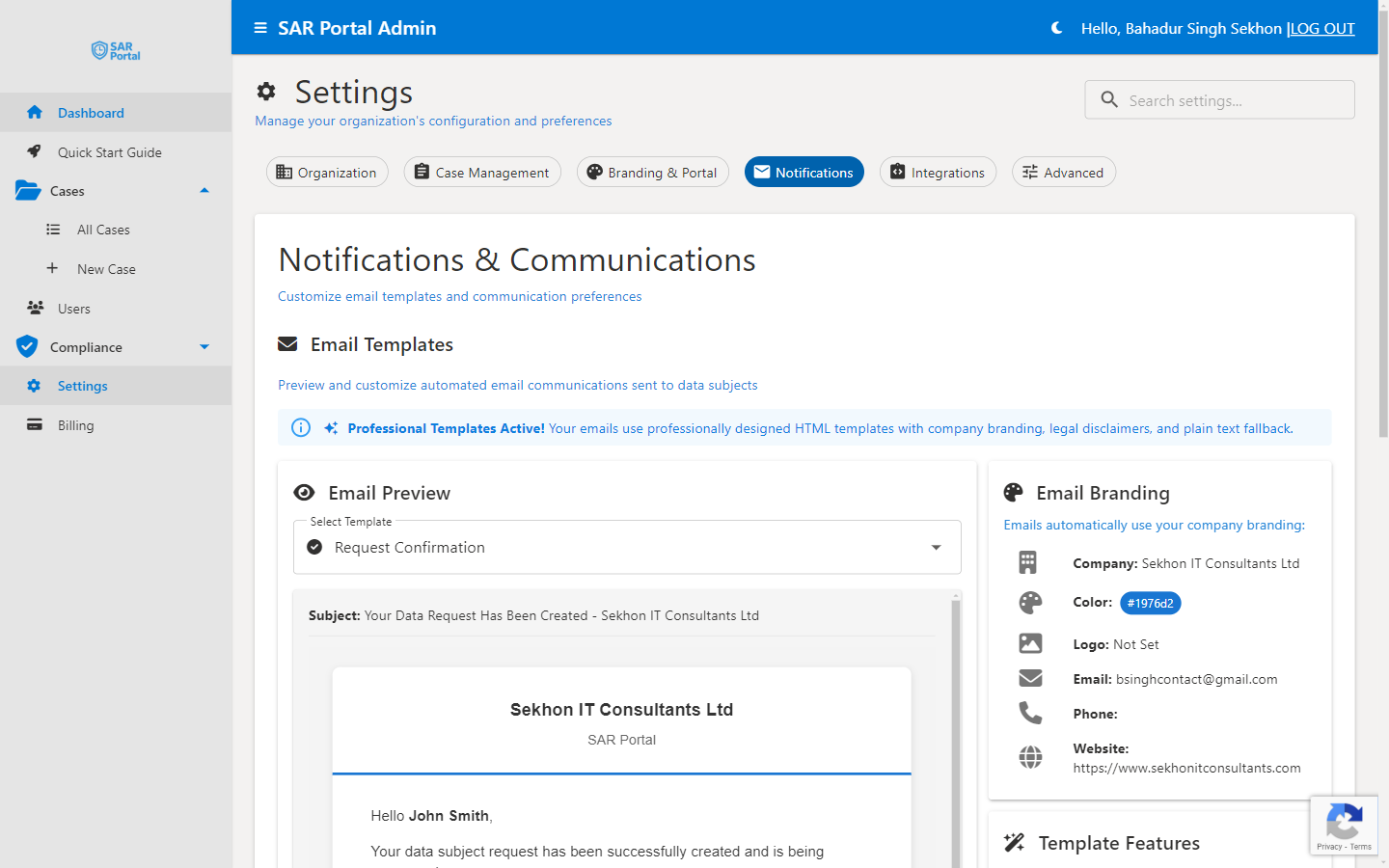
The Notifications section in Settings lets you customize how automated emails look when sent to data subjects and your team.
What This Section Does
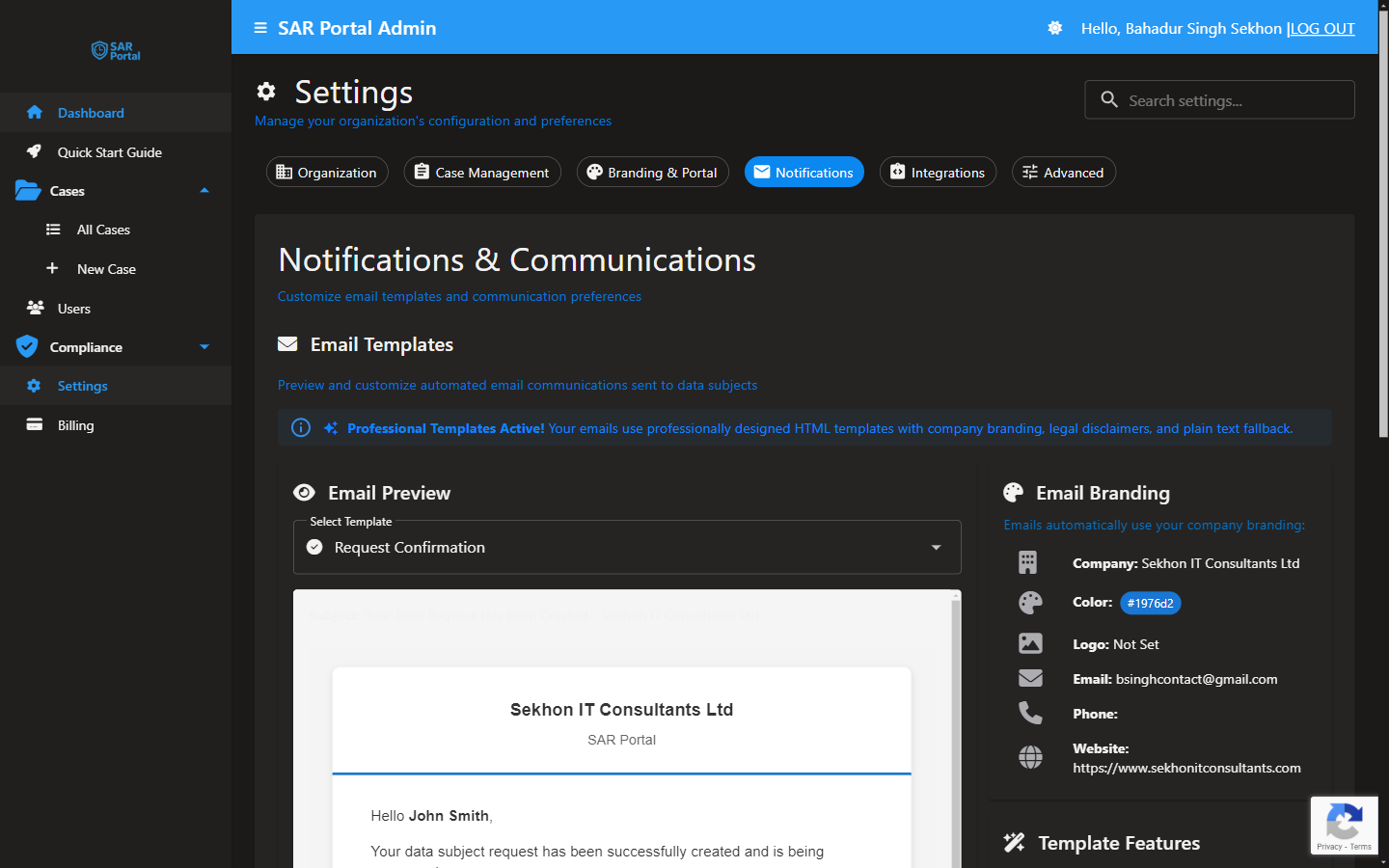
The Notifications section configures email template branding - how your automated emails look. It does NOT let you enable/disable specific notifications.
All automated emails are sent based on system events (new case created, status changed, etc.) and cannot be individually toggled on or off.
Email Template Branding
Company Information
Configure the details that appear in all automated emails:
| Setting | Description | Example |
|---|---|---|
| Company Name | Your organization name | “Acme Corporation” |
| Email Address | Reply-to email | “privacy@acme.com” |
| Phone Number | Contact phone (optional) | “+353 1 234 5678” |
| Website | Your website domain | “www.acme.com” |
Visual Branding
| Setting | Description |
|---|---|
| Logo | Your company logo appears in email header |
| Primary Color | Accent color for buttons and links |
Your Data Request Has Been Created
We've received your request and will respond within 30 days.
Case Reference: CASE-2024-0042
Request Type: Access Request
Expected Response: Within 30 days
View Your RequestAutomated Emails
SAR Portal automatically sends emails for these events:
To Data Subjects
| When Sent | |
|---|---|
| Case Created | When a DSAR is submitted through your portal |
| Status Update | When case status changes |
| Information Request | When you request additional info |
| Case Closed | When the case is completed |
To Your Team (Internal)
| When Sent | |
|---|---|
| New DSAR Alert | When a new case is created via public portal |
| Info Submitted | When subject provides requested information |
Account & Billing
| When Sent | |
|---|---|
| User Invitation | When inviting a new team member |
| Welcome Email | After registration |
| Payment Succeeded | After successful payment |
| Payment Failed | When payment fails |
| Subscription Canceled | When subscription is cancelled |
Email Features
All automated emails include:
Professional Design
- Clean, mobile-responsive HTML layout
- Your company branding
- Clear call-to-action buttons
Plain Text Fallback
- Automatic plain text version for email clients that don’t support HTML
- Ensures maximum deliverability
Compliance Information
- Appropriate legal disclaimers
- GDPR-compliant messaging
- Data protection information
Testing Email Templates
Send Test Email
- Go to Settings > Notifications
- Click Send Test Email
- Check your inbox
- Verify branding appears correctly
Email Deliverability
Ensuring Emails Arrive
To ensure automated emails reach recipients:
- Whitelist sender - Add
noreply@sarportal.comto safe senders - Check spam folders - Initial emails may land in spam
- Verify DNS - For custom domains, ensure proper SPF/DKIM records
If Emails Aren’t Arriving
- Check spam/junk folders
- Verify the email address is correct
- Check if email provider is blocking
- Contact support@sarportal.com for delivery issues
Related Settings
| Section | What It Does |
|---|---|
| Branding & Portal | Logo and colors (also applies to emails) |
| Organization | Company details used in emails |