Tutorial: Complete a Case End-to-End
This tutorial walks you through handling a complete Data Subject Access Request (DSAR) from receiving the request to sending the final response. Follow along in your own SAR Portal account.
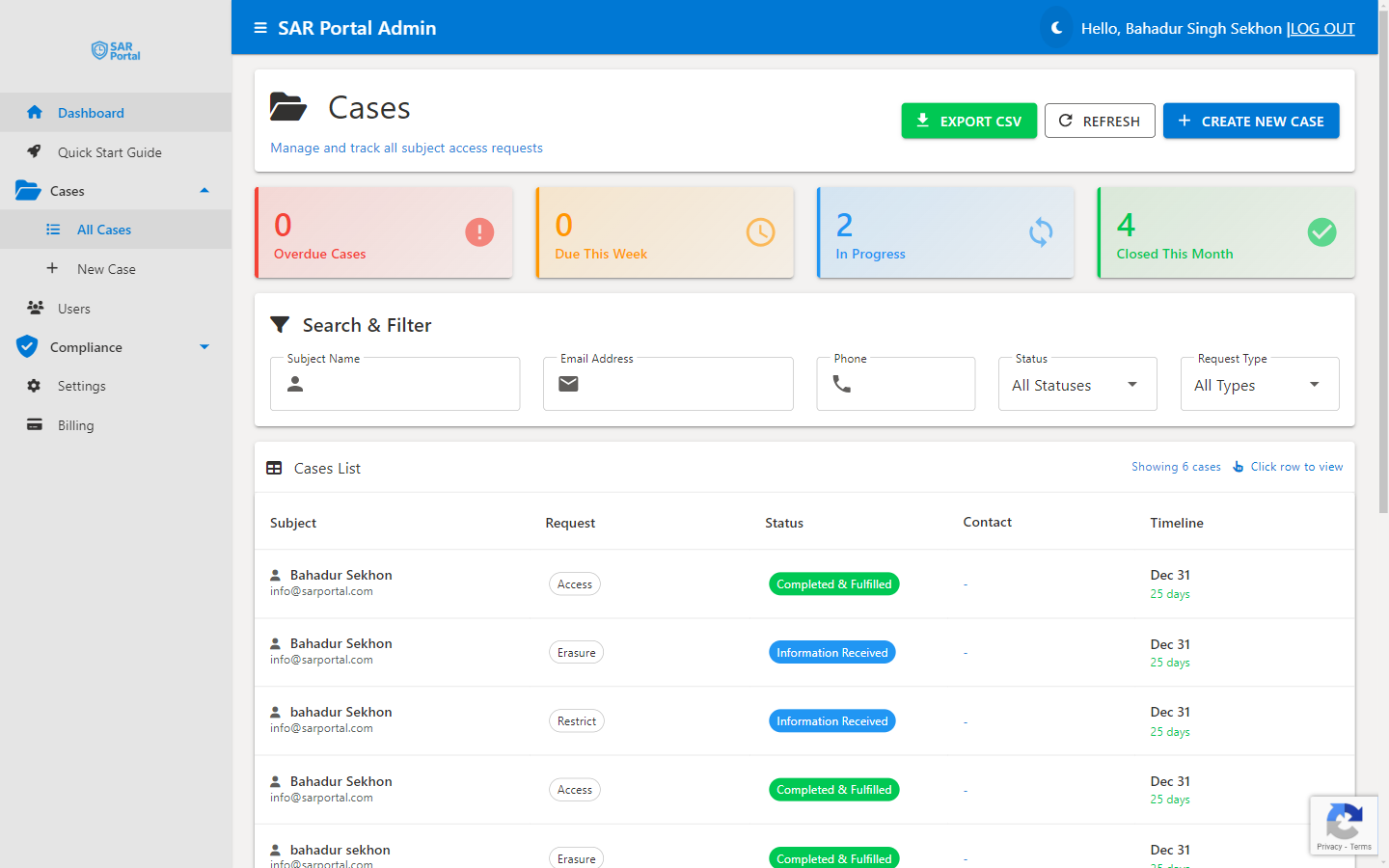
Scenario
The Request: John Smith has submitted an access request through your public portal, asking for a copy of all personal data you hold about him.
Your Task: Gather his data, review it for third-party information, redact where necessary, and respond within 30 days.
Step 1: Review the New Case (Day 1)
When the request comes in, you’ll receive an email notification and see it in your dashboard.
1.1 Open the Case
John Smith • john.smith@email.com
Access Request (Art. 15) • Due: 30 days
1.2 Review Case Details
Check the case summary:
- Request Type: Access Request (Article 15)
- Subject: John Smith
- Email: john.smith@email.com (verified via portal)
- Date Received: Today
- Due Date: 30 days from today
- Notes: Any details the subject provided
1.3 Update Status
Change the status to show you’ve started working:
Step 2: Gather Data (Days 1-7)
Now collect all personal data you hold about John Smith.
2.1 Search Your Systems
Check all locations where you might have John’s data:
- CRM / Customer database
- Email communications
- Order history
- Support tickets
- Marketing lists
- Any other systems
2.2 Export the Data
Export relevant records as documents:
- Customer profile PDF
- Email history export
- Order records CSV
- Support ticket history
2.3 Upload Documents
or click to browse
PDF, Word, Excel, Images • Max 50MB
2.4 Add Notes
Document what you searched:
Searched the following systems for data relating to John Smith:
- Salesforce CRM: Found customer profile and order history
- Gmail: Found 23 email exchanges
- Zendesk: Found 2 support tickets
- Mailchimp: Found on marketing list (subscribed)
- Accounting system: No records found
Step 3: Analyze Documents (Days 7-14)
Use AI to identify personal data in the documents.
3.1 Run AI Analysis
For each document:
- Click Analyze for PII button
- Wait for analysis (10-30 seconds)
- Review detected entities
12 entities detected in email-history-export.pdf
3.2 Identify Third-Party Data
Important: You must redact personal data belonging to OTHER people before sending to John.
From the analysis above, identify:
- John’s data (keep): john.smith@email.com, John Smith, his phone, his address
- Third-party data (redact): Sarah Jones, Mike Wilson, Emma Brown, their emails and phones
Step 4: Redact Third-Party Data (Days 14-21)
Remove other people’s personal information from the documents.
4.1 Open Redaction Editor
Click Redact on the document to open the redaction interface.
4.2 Review AI Suggestions
The AI will highlight detected PII. For each item, decide:
Email Address • High confidence
Email Address • High confidence
4.3 Apply Decisions
| Entity | Decision | Reason |
|---|---|---|
| john.smith@email.com | Keep | Subject’s own data |
| John Smith | Keep | Subject’s own data |
| sarah.jones@company.com | Redact | Third-party data |
| Sarah Jones | Redact | Third-party data |
| mike.wilson@company.com | Redact | Third-party data |
| Mike Wilson | Redact | Third-party data |
4.4 Apply Redactions
- Confirm all redaction selections
- Click Apply Redactions
- A new redacted version is created
- Original is preserved
Step 5: Review & Approve (Days 21-28)
Before responding, have the documents reviewed.
5.1 Mark Identity as Verified
Once you’ve confirmed the subject’s identity:
5.2 Review Checklist
Before closing, verify:
- All systems searched for subject's data
- All relevant documents gathered
- Third-party data identified and redacted
- Documents are in accessible format
- Response is within 30-day deadline
- Manager/legal approval obtained (if required)
5.3 Add Final Notes
Document your review:
Review completed by: Jane Admin
Date: [Today]
Documents reviewed: 3
Redactions applied: 8 third-party items
Response ready for delivery
Step 6: Close the Case (Day 28)
Finalize and send the response.
6.1 Prepare Response Package
Download the redacted documents to send to John:
- Click Download on each redacted document
- Compile into a response package
- Include a cover letter explaining what’s provided
6.2 Send Response to Subject
Send the documents to John via:
- Secure email with attachments
- Encrypted file sharing link
- Physical mail if requested
6.3 Close the Case
6.4 Confirmation
Case Closed Successfully
CASE-2024-0042 • Completed in 28 days
Summary
You’ve successfully completed a DSAR by:
- ✅ Reviewing the incoming request
- ✅ Gathering data from all your systems
- ✅ Analyzing documents for personal data
- ✅ Redacting third-party information
- ✅ Reviewing before sending
- ✅ Closing with full documentation
Time Spent
| Phase | Days | Activities |
|---|---|---|
| Review | 1 | Open case, understand request |
| Gather | 7 | Search systems, export data |
| Analyze | 7 | Run AI analysis, identify PII |
| Redact | 7 | Apply redactions, create clean docs |
| Review | 4 | Final review, obtain approvals |
| Close | 2 | Send response, close case |
| Total | 28 | Within 30-day deadline |
The Audit Trail
SAR Portal has automatically recorded:
- When the case was created
- Every status change
- All document uploads
- AI analysis results
- Redaction decisions
- Who did what and when
- Final closure details